
Materials
Mac or PC
Access to your Magic Leap Device
Magic Leap Compute Pack
Magic Leap Controller
USB Cable to connect compute pack to computer
Installing the Magic Leap Hub
Accessing Scores
Click on this link: Magic Leap Hub and download the software
The Magic Leap Hub lets you install and manage Magic Leap tools like the headset.

2. Once downloaded, a pop up window should open with “Set up” instructions. This will guide you through downloading the ML Hub on to your computer.
Accessing Individual Scores

3. Read and agree to the License Agreement.

4. Specify the location on your computer that you would like the ML HUB installed to.

5. You should now have the Magic Leap Hub installed on your computer. Proceed to launch the application.

Accessing Device Bridge
Once the ML hub has been downloaded, launch the application. The ML Hub should display the home directory.
Connect your Magic Leap device (compute pack) to your computer with a USB cable.
Turn on the Magic Leap Device.
Once the headset has been powered on, put on the headset.
A pop up will show on the Magic Leap headset informing you a USB device has been detected.
Click “File Transfer/ML Connectivity Media Transfer Protocol (MTP)'“, then select “OL”
The headset should now be detectable by the ML HUB.

3. Select “Start Device Bridge” from the ML Hub Homepage. Device Bridge helps you manage apps, files, logs and view information about the Magic Leap Device

4. You should now see a dashboard displaying information about your Magic Leap Headset. Select the files tab.

Accessing Scan Data
Scans can be accessed through the following file path: /sdcard/Android/data/com.neuroFit.nFit/data
The data folder contains a number of scans in chronological order by UTC in Linux epoch time.

2. Select all of the scans to download onto your computer.
Scans are identified in the following format (“170xxxxxxxxxx”)
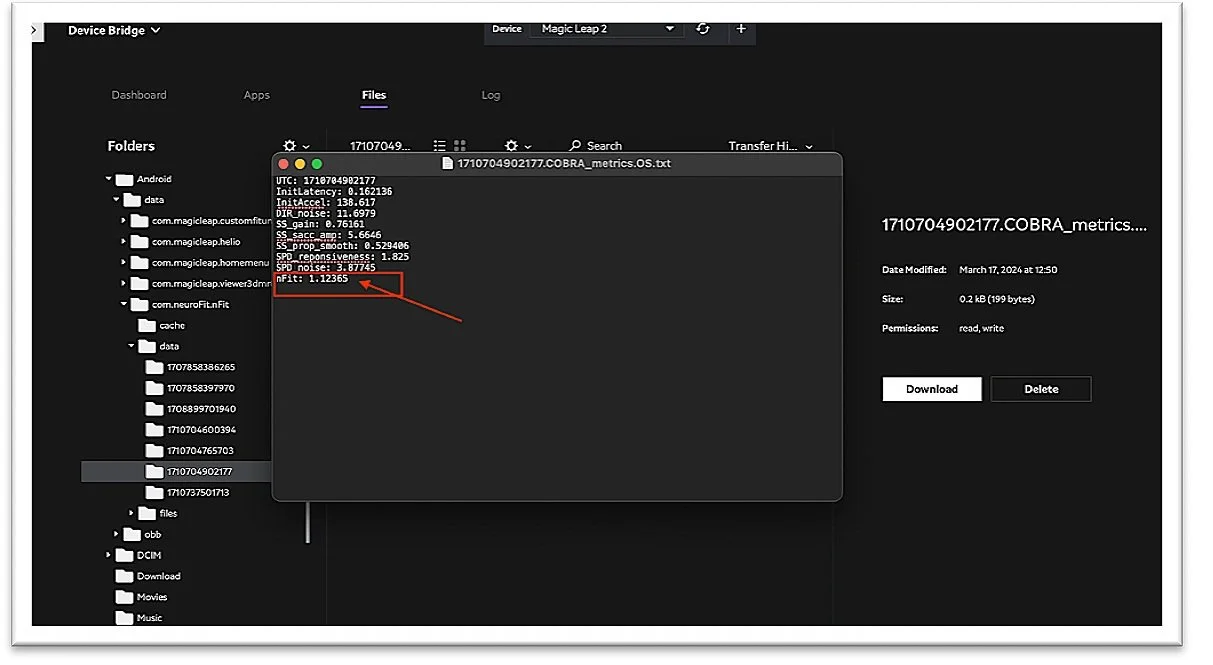
The file, “Data” contains scores from your individual nFit sessions. Select the sessions you want to open.
2. Select the file ending with “COBRA_metrics”.
3. A “TextEdit” file should pop up. This will display your nFit score for that session.


Online Accounts. Using the nFit app requires no identifiable information. Feel free to use it anonymously or you may associate your scans with an online account, depending on your brain health goals. If you plan to save your scan, set up your account before you launch the app as you will need to display a QR code to the headset camera when you see this QR icon (green check when successful).
Trademark 87299329
US 10,463,249
US 10,420,465
US 9,730,582

A PORTION OF PROCEEDS BENEFITS NATIONAL AERONAUTICS AND SPACE ADMINISTRATION