The logo for the website 'nFit app' with the text 'nFit' in colorful letters and 'app' in black.

Materials

  1. Mac or PC

  2. Access to your Magic Leap Device

  3. Magic Leap Compute Pack

  4. Magic Leap Controller

  5. USB Cable to connect compute pack to computer

Getting the App

Download the app from GitHub using this link:

https://github.com/neurofit/nFit/blob/main/nFit.apk

Silhouette of a cat's head with pointed ears and whiskers.

Installing Magic Leap Hub

Updating The App
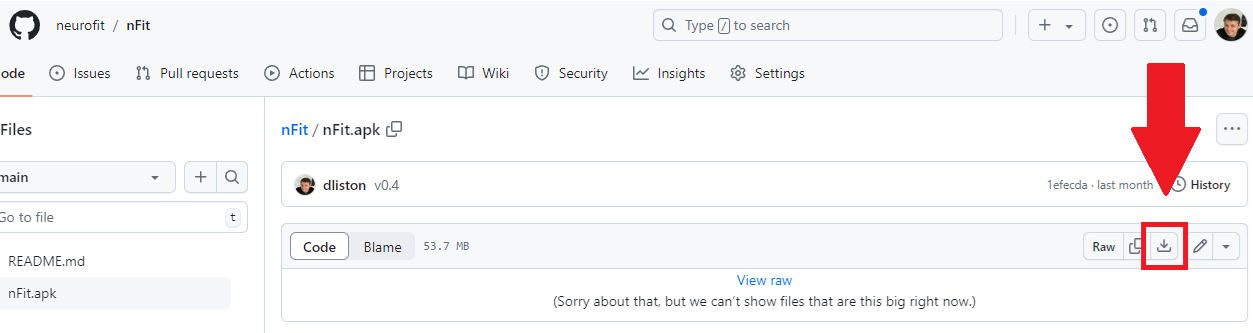
A webpage showing a software repository platform with a highlighted download button and an arrow pointing to it.
  1. Click on this link: Magic Leap Hub and download the software

    The Magic Leap Hub lets you install and manage Magic Leap tools like the headset.

Two buttons labeled for downloading software: one purple button for MacOS and one white button for Windows.

2. Once downloaded, a pop up window should open with “Set up” instructions. This will guide you through downloading the ML Hub on to your computer.

App Update

Computer screen displaying the setup window for Magic Leap Hub software with a welcome message and navigation buttons.

3. Read and agree to the License Agreement.

Installation setup window for Magic Leap Hub software, showing license agreement text and options to accept or decline the license.

4. Specify the location on your computer that you would like the ML HUB installed to.

Screenshot of a software installation window for Magic Leap Hub, showing the setup page to specify the installation directory as /Applications with Next, Back, and Cancel buttons.

5. You should now have the Magic Leap Hub installed on your computer. Proceed to launch the application.

Screenshot of the Magic Leap Hub installation process, showing a completed setup window with an option to launch the app, and the app icon with a geometric logo.

Accessing Device Bridge

  1. Once the ML hub has been downloaded, launch the application. The ML Hub should display the home directory.

  2. Connect your Magic Leap device (compute pack) to your computer with a USB cable.

    1. Turn on the Magic Leap Device.

    2. Once the headset has been powered on, put on the headset.

    3. A pop up will show on the Magic Leap headset informing you a USB device has been detected.

    4. Click “File Transfer/ML Connectivity Media Transfer Protocol (MTP)'“, then select “OL”

    5. The headset should now be detectable by the ML HUB.

The image shows a computer screen with a graphical interface for managing device software and updates. The interface includes options like Device Bridge, Device Stream, Advanced Capture, OS Installer, and Package Manager, along with recent news articles. A red arrow points to the bottom right corner, highlighting a small icon of glasses with a green indicator.

3. Select “Start Device Bridge” from the ML Hub Homepage. Device Bridge helps you manage apps, files, logs and view information.

Computer screen displaying software interface with options: Device Bridge, Device Stream, Advanced Capture, OS Installer, Package Manager.

Allowing File Transfer on the Headset

When the headset is connected to your PC with a USB cable, put on the headset and select the top option.

  1. You should now see a screen with a dashboard displaying information about your Magic Leap Headset. Select the apps tab.

2. Using the search bar, search for the “nFit” app.

3. Select “Install app.”

4. A pop up will open, requiring you to select a file from your computer. Select “nFit.apk” that you downloaded from Github.

Screenshot of a device management interface showing details for a device named 'Magic Leap 2', including connection info, storage usage, and battery level, with an image of a mixed reality headset in the center.
Screenshot of a software interface with a dark theme, showing an app management section. There are options to install apps or search for apps, with a highlighted 'Search Apps' button indicated by a red arrow. The interface displays a list of apps with details including name, package, version, status, and type.
A software interface displaying a dashboard with a section labeled 'Apps'. There is a button highlighted with a red border and an arrow pointing to it that says 'Install App'. The interface shows details for an app called 'nFit' including its package, version, status, type, and debug status.

Online Accounts. Using the nFit app requires no identifiable information. Feel free to use it anonymously if you like, or you may associate your scans with an online account to track your progress. If you plan to save your scan, set up your account before you launch the app as you will need to display a QR code to the headset camera when you see this QR icon (green check when successful).

Trademark 87299329
US 10,463,249
US 10,420,465
US 9,730,582

A QR code with teal text and design elements on a black background.
Government warning label about software not intended for diagnosing or curing diseases.

A PORTION OF PROCEEDS BENEFITS NATIONAL AERONAUTICS AND SPACE ADMINISTRATION